Otaku - a Compositing Tool for 2D Animations
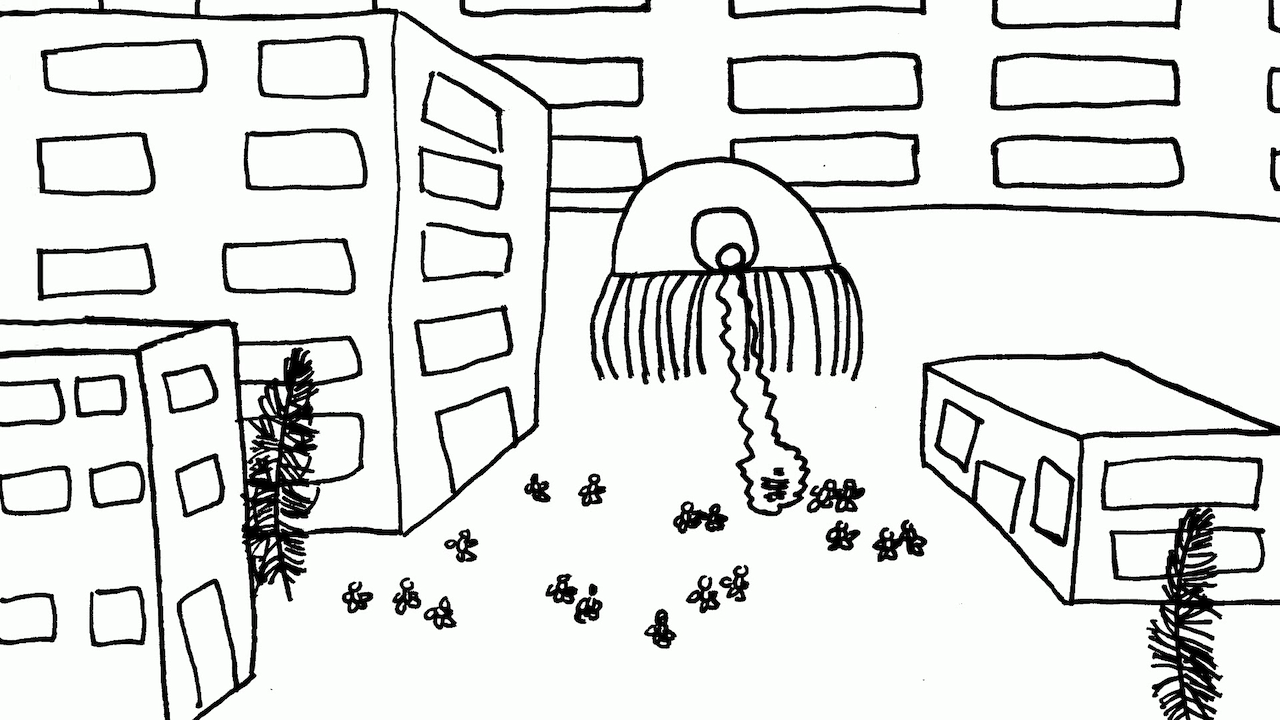
Otaku is an open source computer animation software tool written in Python that composites .png files together into frames and stitches those frames into an .mp4 movie. It is controlled by human readable text control files that are designed to be easily written to via scripting languages.
Background
When I started "Eight Uncomfortable Robots" it was important to me that the film be primarily made the old fashioned way: with hand-drawn images using a lightbox, paper, and pen. However, I didn't have the right setup (or the inclination) to film and composite the images manually. So, instead, I scanned my images using an Epson office printer and started looking around for a good way to combine them together into a movie. I didn't find anything that really suited me, so I did the stupid thing and wrote a script myself.
I chose Python as a language because I am fond of it. I chose opencv because strangely it seems to be the simplest 2D graphics API available.
Prerequisites
Download
Example project files. If you unzip the folder and run "python otaku.py" in a commandline in that directory you should see a short clip of a pig running on a cloudy day.
How to Use It
Otaku is a commandline Python script that takes three pieces of data as input: a directory that contains the source images, a plaintext control file that tells the script how those files should be composited together in a final animation, and an output file.
python3 otaku.py -output=cat.mp4 -images=/home/user/frames -control=src.txt
Commandline Parameters:
-images (defaults to images)
-output (defaults to .mp4)
-control (defaults to control.txt)
The image directory should be a folder that contains .png files. These files can be of arbitrary resolution but should not exceed the size of the canvas.
The output file should have the .mp4 extension.
The control file is a plaintext format. Each frame of your movie will start with a line that looks like this:
@ 5000 5000 2500 2500 0.3
This is a canvas line. There are six sections split by single spaces:
- The first section is always the "@" symbol. This denotes the start of the frame.
- The second and third sections define the width and height of the canvas.
- The fourth and fifth sections define the focus point of the camera.
- The sixth section defines the zoom level of the camera.
Lines after the canvas line are layer lines. They have eight sections and look like this:
* image.png 1000 1000 1000 1000 0.0 1.0
- The first section of a layer line is always the "*" symbol.
- The second section tells the program the name of the image file.
- The third and fourth sections tell the program the x,y location of the image's top left corner on the canvas.
- The fifth and sixth sections denote how big, in pixels, the image should be when it is added to the canvas.
- The seventh section is the rotation angle of the image.
- The eigth section is the alpha transparency (0-1.0) that the image should have when it is added to the canvas.
NOTE 1: To date I've only tested this software on my Mac. I don't see any reason why it wouldn't work on Windows, though.
NOTE 2: The output video file has a fixed resolution of 1920x1080. I'll add the ability to make variably sized files in the next version, probably.
NOTE 3: This software is released as an open source project under the GNU LGPL.